


Compress Video - Resize Video
4.71.10K Reviews
App Specs
- Version
- 1.1.33
- Updated On
- License
- Free
- Downloads
- 500,000+
- Developer
- Double Ape
- Categories
- Video Players & Editors
- Platform
- Android, iOS
Screenshots
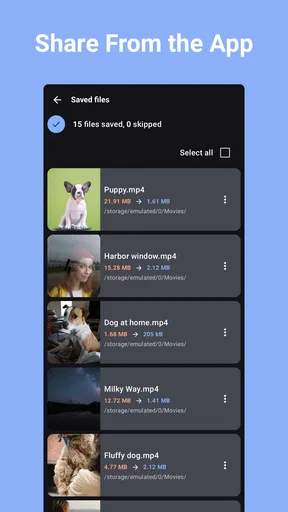
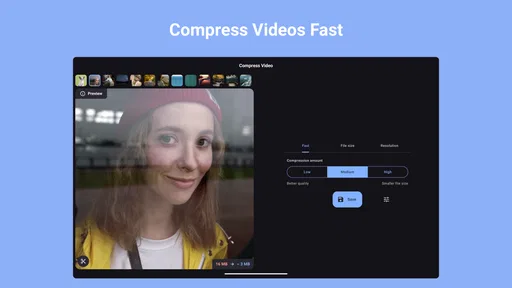
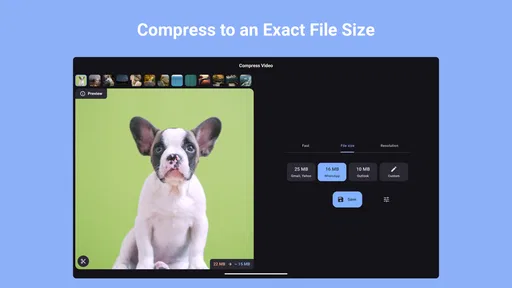
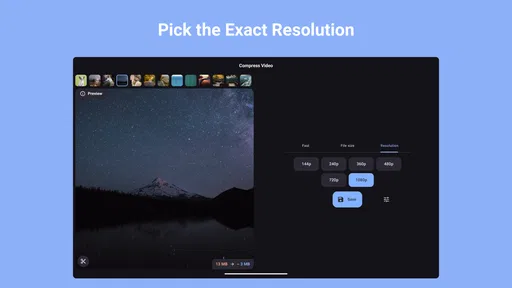
 Analysis by AppCompare
When I need to send a video from my phone and the file is too bulky to share comfortably, I want a tool that gets me to a smaller copy without turning the job into a video-editing project. Compress Video - Resize Video is built around that practical task: reducing video file size while keeping the result usable. I see its appeal less as a place to make videos and more as a focused stop between recording and sharing.
What the free access tells you—and what it doesn’t
The app is free to install, which makes it easy to try on a video you already have rather than pay simply to find out whether a compression workflow suits you. It also offers in-app purchases, with listed item prices ranging from $5.99 to $31.99. Those are the confirmed cost details I’d use when deciding whether to explore it; I wouldn’t assume that a particular compression setting or feature requires payment without checking the options shown in the app.
That distinction matters because a free download and a paid purchase are not the same value proposition. If your need is occasional, the sensible first step is to test the free access with a copy of a video that is not irreplaceable. If you are considering spending money, first identify what the purchase offers in the app and whether it solves a recurring problem for you. The listed price range alone doesn’t tell me which item is right for a particular user.
Where a dedicated compressor earns its place
As a video tool, this app has a narrow job, and that focus is useful. A video editor may offer a way to export at a smaller size, but that usually sits among trimming, effects, titles, and other controls. A phone’s built-in sharing options may be enough for a quick send, yet they don’t always give you a deliberate compression step. A dedicated compressor makes sense when you want to handle the file itself before choosing where it goes.
A realistic example is recording a long clip at a family gathering, then discovering that the original is awkward to send in a group chat. I would keep the original untouched, make a smaller version, and check that the important moment still looks clear before sharing the reduced copy. That approach is safer than replacing or deleting the only full-quality version just to save space or meet a sharing limit.
The same workflow can help when you need to upload a clip using a limited connection or keep a smaller copy on your phone for quick reference. Compression is a trade-off, though: a smaller file has less visual information to work with, and fast movement, fine detail, or dim scenes can make quality loss more noticeable. I’d compare the compressed result on the screen where it will actually be watched, rather than judging only by the fact that the file is smaller.
Why You’ll Love Compress Video - Resize Video
First things first, let’s talk about what makes Compress Video - Resize Video stand out from the crowd. This app is all about simplicity and efficiency. It’s got a straightforward interface that even the least tech-savvy among us can navigate with ease. You just select your video, choose your compression settings, and voilà! You’ve got a smaller file ready to go.
Worth Reading Before You Choose

EA SPORTS FC Mobile 26 Is a Bigger Football Game, but It Takes Time

Flipboard Shows What News Apps Must Do Beyond the Feed

Switching to Android Auto Means Rethinking Your Driving Routine

Google Calendar Makes a Crowded Week Easier to Manage

Ludo King Makes the Most of the Minutes Between Plans

Baby Panda World Brings Quick Play to Modern Phones, but Its Game Library Feels Busy
The User Experience
One of the things I love about this app is the user interface. It’s clean, intuitive, and doesn’t bombard you with unnecessary options. From the moment you open it, you know exactly what to do. There’s a clear path from start to finish, and the app doesn’t try to do too much at once. It stays focused on its core function: compressing videos.
Another thing worth mentioning is how quick the app is. I’ve tested a few different videos of varying lengths and resolutions, and the compression process is consistently speedy. No more waiting around for ages while your video gets processed. This is a huge plus for anyone in a hurry.
Features That Make a Difference
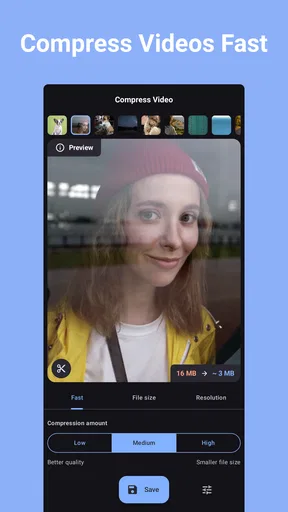
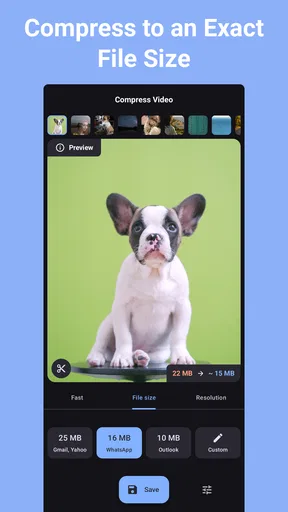
Let’s dive into some of the features that make this app a must-have. First off, it offers various compression levels, so you can choose how much you want to shrink your video. Whether you need a slight reduction or a significant drop in size, this app gives you the flexibility to decide.
Additionally, the app supports a wide range of video formats, which is a lifesaver. You won’t have to worry about converting your videos beforehand; just upload and go. There's also an option to preview your video before finalizing the compression, which helps ensure that the quality meets your standards.
Ease of Sharing
Once your video is compressed, the app makes it super easy to share. Whether you want to email it, send it via messaging apps, or upload it to social media, Compress Video - Resize Video has got you covered. The app integrates seamlessly with various platforms, so you won’t have to jump through hoops to get your video where it needs to go.
Getting a dependable result
For an important clip, I wouldn’t treat the first compression as a final answer. I’d keep the original, make a test copy, and check both the picture and the sound before sending it. If the result looks too soft or details are lost, I’d try a less aggressive setting rather than repeatedly compressing the already reduced file. Starting again from the original gives you a better chance of preserving quality.
It’s also worth thinking about the destination before choosing how much to reduce. A short clip watched on a phone can tolerate a different compromise from a video someone may view on a larger screen. If the goal is simply to send a quick update, a smaller file may be the priority; if the footage matters as a keepsake, I’d favor quality and share the original another way when practical.
Who will get the most from it
I’d recommend this kind of focused tool to people who regularly record on their phones and run into file-size friction when sharing. It can also suit someone who wants a straightforward compression step without opening a full editor. Double Ape is the developer, and the app sits in the video-player and editing space, though its value here is specifically in preparing videos for easier handling.
It is less compelling if you rarely share videos, already have a reliable export workflow in an editor, or need to make detailed changes such as cutting scenes and adding titles. Compression cannot replace editing, and shrinking a video does not guarantee that every recipient, platform, or connection will handle it exactly as you expect. For those situations, I’d choose the tool that addresses the actual obstacle rather than adding another step.
Practical details before you install
The app is rated for Everyone and requires Android 7.0 or later. Its current version is 1.1.25, and it was released on December 28, 2023. It has a 4.7 average from around 15,000 ratings, with roughly 1,000 written reviews, and has passed 500,000 installs. Those figures suggest that many people have tried it, but I’d still judge it by whether it handles your own videos and your usual sharing routine.
One practical question is whether you need to prepare a clip before choosing a messaging app or social platform. This compressor can fit that sequence: select the source, choose a reduction level, preview the output, then share the smaller copy through the destination you prefer. Another is whether it is suitable for preserving a one-off memory. I would not use a smaller export as my only copy; keeping the original gives you room to try again if the first result is not good enough.
When another option is better
If you already edit videos, exporting a finished project at a lower resolution or bitrate may be more convenient because it keeps trimming and output decisions together. If a platform offers its own upload processing, that may be sufficient when you do not need a separate file saved on your phone. On the other hand, those routes can be less direct when all you want is a smaller copy of an existing clip. The useful comparison is not which approach is universally best, but whether you need editing, a platform-specific upload, or a simple compression pass.
I’d also avoid assuming that the smallest possible file is automatically the right target. A very strong reduction can make text, faces, or movement harder to see, while a modest reduction may already be enough to make sending more convenient. Try a middle-ground setting first, inspect the result, and adjust only if the file still does not suit the intended use. That small check is more reliable than choosing the most aggressive option by default.
Final Thoughts
All in all, Compress Video - Resize Video is a fantastic tool for anyone who deals with large video files regularly. It’s user-friendly, fast, and packed with useful features that make video compression a breeze. Whether you’re a professional needing to share content or just someone who loves capturing moments on video, this app is definitely worth checking out.
So, if you're tired of dealing with oversized video files, give this app a try. It might just become your go-to tool for video management. Happy compressing!
My buy-or-skip verdict
I’d try it if large phone videos repeatedly get in the way of sending, uploading, or keeping a practical copy. Free access lowers the barrier to testing that specific workflow, while the in-app purchase range makes it sensible to inspect what is being offered before paying. I’d skip it if compression is a rare annoyance, if you need a full editor, or if preserving maximum quality matters more than producing a smaller file. For the right person, its worth is simple: less friction between recording a video and getting a shareable version out the door.
Pros
- Intuitive user interface for easy navigation.
- Handles multiple video formats effectively.
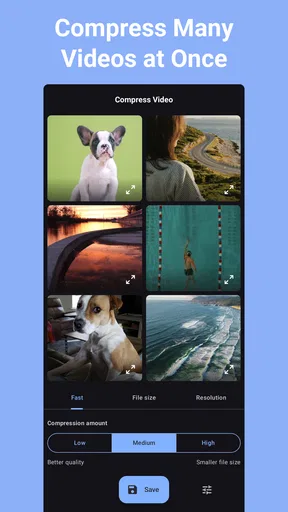
- Batch processing saves time on multiple files.
- Adjustable compression settings for quality control.
- Minimal impact on device performance during use.
Cons
- Limited features in the free version.
- Occasional ads can disrupt workflow.
- No cloud integration for easy sharing.
- Compression can reduce video quality at times.
- Requires in-app purchases for some features.
FAQs for Compress Video - Resize Video
What features does Compress Video - Resize Video offer?
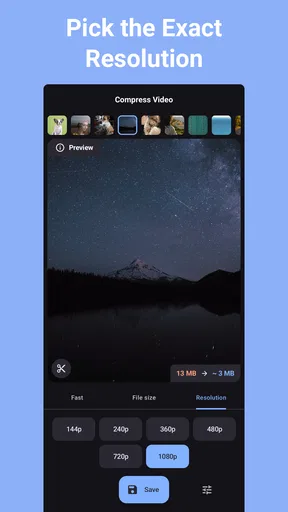
Compress Video - Resize Video provides a range of features including video compression, resizing, and format conversion. Users can adjust video quality to balance between file size and clarity, making it ideal for storage management or sharing online. The app supports various video formats, ensuring compatibility across different devices.
Is Compress Video - Resize Video user-friendly for beginners?
Yes, the app is designed with a user-friendly interface that is easy to navigate, even for those with little technical experience. It offers step-by-step guidance and intuitive controls, allowing users to compress or resize videos with just a few taps. This makes it accessible for anyone looking to manage their video files efficiently.
Does Compress Video - Resize Video support batch processing?
Yes, the app supports batch processing, which allows users to compress or resize multiple videos simultaneously. This feature is particularly useful for users with large video libraries, as it saves time and effort by automating the process for multiple files at once, without compromising on quality.
Are there any limitations in the free version of Compress Video - Resize Video?
The free version of Compress Video - Resize Video may have certain limitations, such as watermarks on processed videos, restricted access to premium features, or ads. Users can explore the full range of functionalities by upgrading to the premium version, which often includes enhanced tools and an ad-free experience.
How does Compress Video - Resize Video ensure the quality of compressed videos?
Compress Video - Resize Video uses advanced algorithms to maintain video quality while reducing file size. Users can customize compression settings to achieve the desired balance between quality and size. The app allows previewing the results before finalizing, ensuring users are satisfied with the output.


